How to Change Thumbnails on YouTube Shorts
YouTube Shorts have become one of the fastest ways to grow on YouTube, but many creators overlook one key detail: YouTube Shorts thumbnails.
Unlike standard YouTube video thumbnails, Shorts thumbnails work differently:
- You can only change YouTube Shorts thumbnails on the YouTube mobile app.
- The YouTube Shorts thumbnail size is different from regular YouTube thumbnails.
- Your thumbnail has to come from a frame in the video itself (you can’t add a custom thumbnail to YouTube Shorts directly, but we have a workaround).
In this guide, you’ll learn how to change a thumbnail on YouTube Shorts, how to add a custom YouTube Shorts thumbnail using a simple workaround, examples of good YouTube Shorts thumbnails, and tips on how to get more views on YouTube Shorts.
Let’s dive in!
Why Thumbnails Matter for YouTube Shorts
Even though YouTube Shorts autoplay in the Shorts feed, thumbnails still play a major role in getting views. Your Shorts thumbnails are often what viewers see first on your channel page, in search results, and suggested videos.
 A good YouTube Shorts thumbnail will help increase views and make your content look more professional and cohesive.
While Shorts thumbnails aren’t as customizable as regular YouTube video thumbnails, choosing the right frame (or using a custom thumbnail workaround) can still make a big difference in how your content performs.
How to Change YouTube Shorts Thumbnails
If you’re wondering how to edit thumbnails on YouTube Shorts, you can do it directly from the YouTube mobile app.
How to Add a Thumbnail to YouTube Shorts (Before Uploading):
- Open the YouTube app on your mobile device.
- Tap the Create (+) button and upload or record your YouTube Short.
- Add your title, description, and other video details.
- Tap the pencil/edit icon on the thumbnail preview.
- Drag the selector to choose the frame you want to use as your YouTube Shorts thumbnail.
- Tap the Checkmark (✓), then upload your Short.
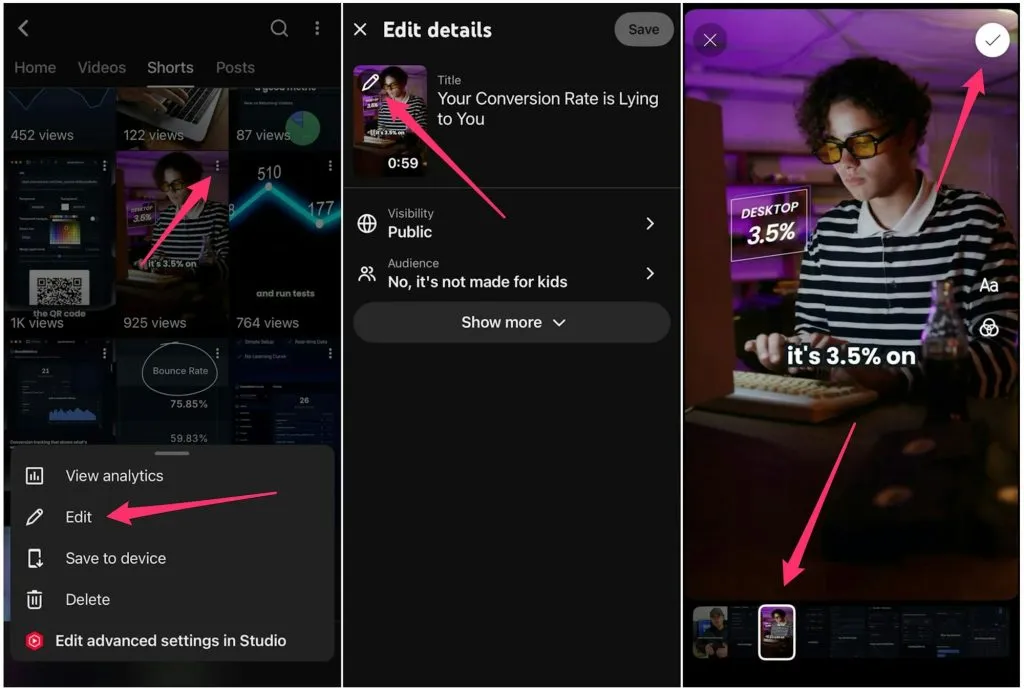
How to Change a Thumbnail on YouTube Shorts (After Uploading):
- Open the YouTube mobile app and go to your profile.
- Tap Your videos and find the YouTube Short you want to edit.
- Tap the three dots (⋮), then select Edit.
- Tap the pencil/edit icon on the thumbnail preview.
- Drag the selector to choose a frame from the video to use as your Shorts thumbnail.
- Tap the Checkmark (✓), then select Save.
YouTube Shorts Thumbnail Size
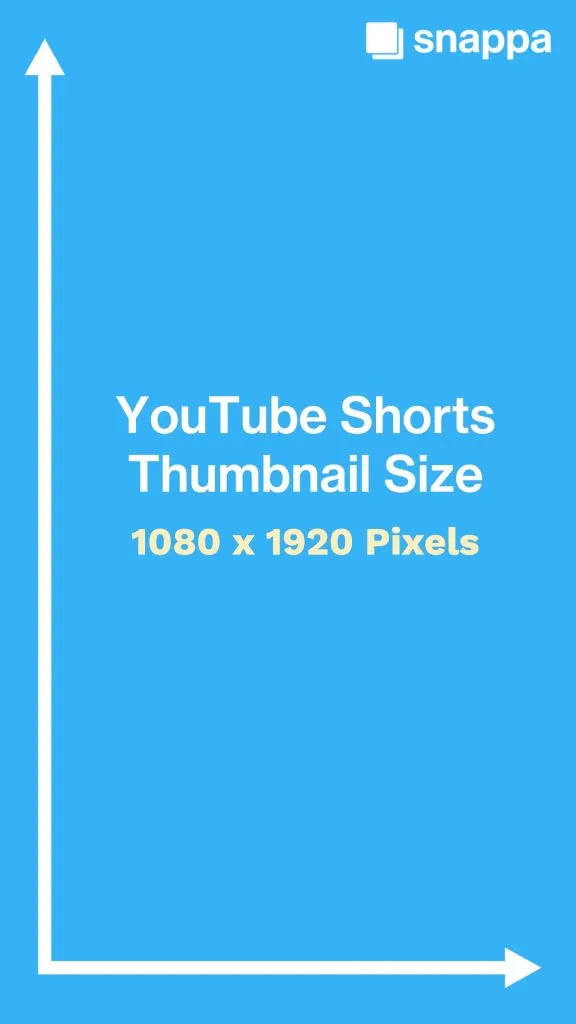
Since YouTube Shorts use a vertical video format, YouTube Shorts thumbnail dimensions are different from the regular YouTube thumbnail size.
Here are the recommended YouTube Shorts thumbnail size dimensions:
- Best size: 1080 x 1920 pixels
- Aspect ratio: 9:16 (vertical)
- Minimum width: 640 pixels
 When you change your thumbnail on YouTube Shorts, it’s best to keep text, faces, and objects centered so they display properly across different devices and YouTube layouts.
To make your YouTube Shorts thumbnail stand out, use:
- One clear focal point
- Large, easy-to-read text
- High-contrast colors
- Simple, uncluttered designs
- Clear subjects and facial expressions
YouTube Shorts Custom Thumbnail Workaround
Even though you can’t add a custom thumbnail to YouTube Shorts directly, many creators use a simple workaround to upload a YouTube Shorts custom thumbnail.
The trick is to design your thumbnail ahead of time, then place it as a frame in your video so you can select it as the thumbnail when you upload your YouTube Short.
Here’s how to set a custom thumbnail for YouTube Shorts:
- Create a YouTube Shorts thumbnail image using the right size: 1080 x 1920 pixels (Tip: you can make thumbnails in minutes using an easy design tool like Snappa).
- Add the thumbnail image to the beginning of your YouTube Short while editing your video.
- Upload your Short using the YouTube mobile app.
- When choosing your YouTube Shorts thumbnail, select the frame containing your custom thumbnail design.
This workaround is one of the best ways to create engaging YouTube Shorts thumbnails that look professional and get more views.
Best Thumbnails for YouTube Shorts
The best YouTube thumbnails for Shorts are simple, sharp, and easy to understand at a glance.
Since most viewers browse on mobile devices, a good YouTube Shorts thumbnail should use bold visuals, readable text, strong contrast, and one clear focal point to grab attention quickly.
Here are some great examples of strong thumbnails for Shorts:
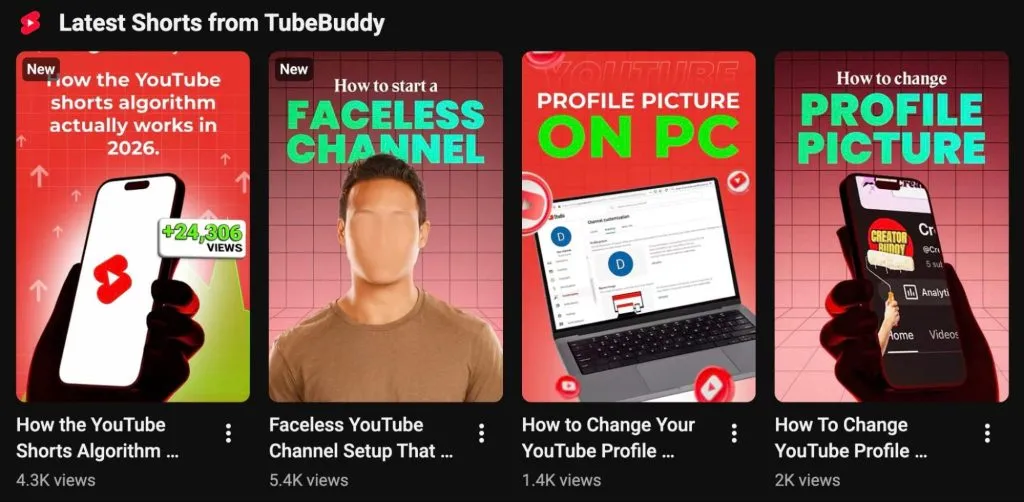
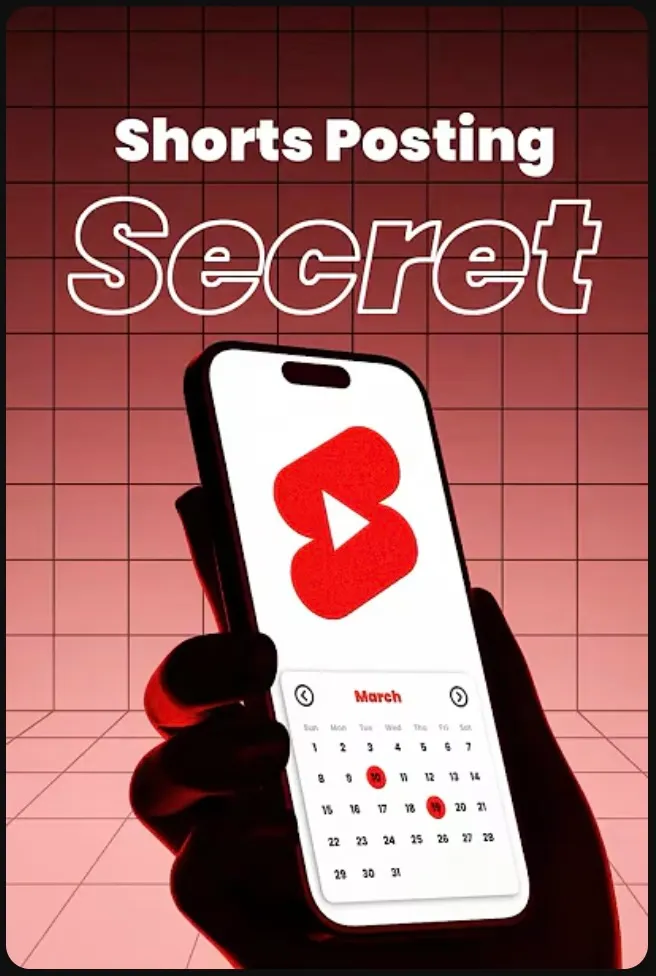
Example 1: This thumbnail from TubeBuddy features large text, strong contrast, and a clear focal point to communicate the video topic and grab attention of viewers.
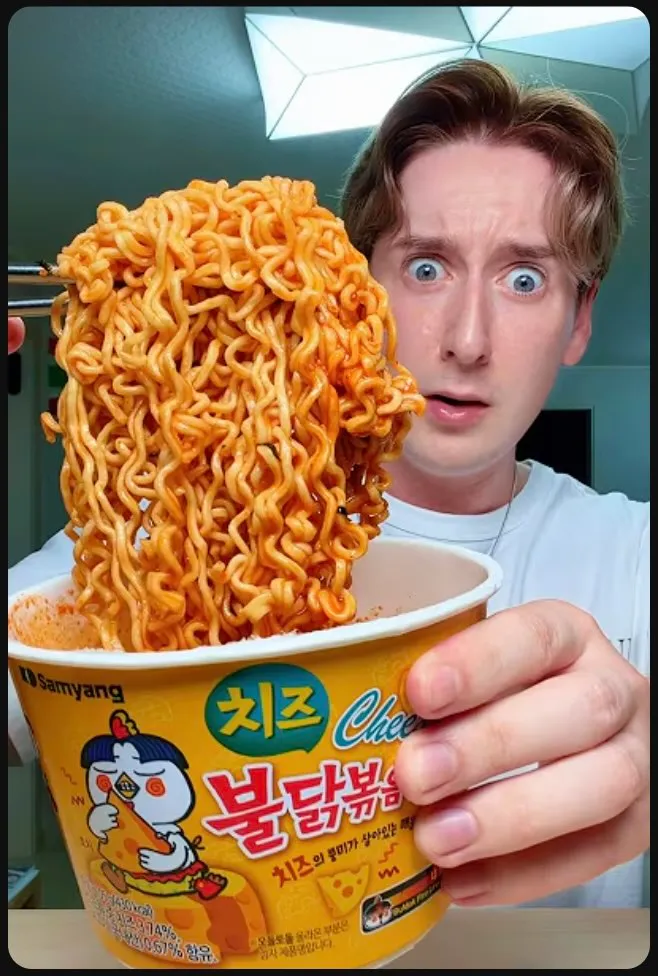
 Example 2: This thumbnail from Koreanosh uses a sharp close-up of ramen and an exaggerated facial expression to fill the frame and instantly draw interest.
 Example 3: In this thumbnail, Peter McKinnon points focus to the coffee machine while yellow text pops against the dark background, making the thumbnail easy to notice while scrolling.
 Example 4: Dylan Reynolds uses simplicity to his advantage. A textured white background and large bold text make the thumbnail readable and quick to understand.

Example 5: TravelPleasure’s thumbnail features vibrant colors and scenic imagery to stand out in the Shorts feed.
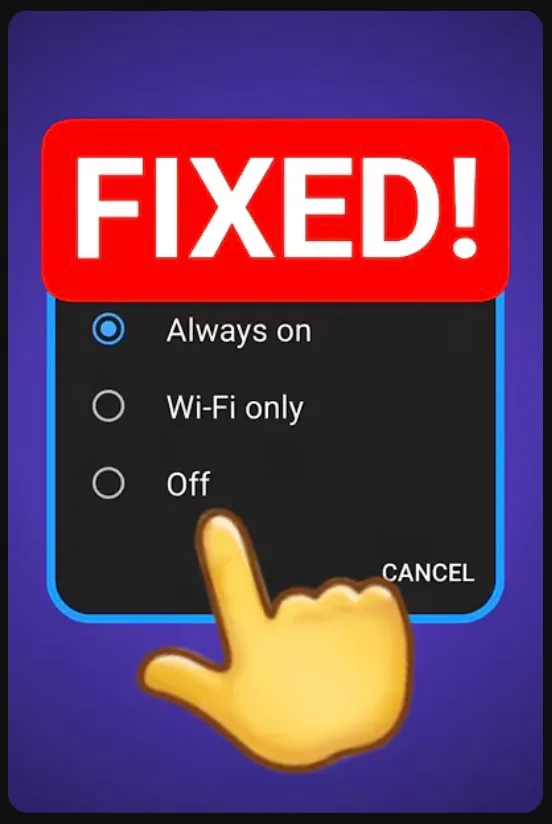
 Example 6: VidIQ uses oversized text and a pointing emoji to emphasize the main topic of the Short and make the thumbnail visually engaging.
How to Get More Views on YouTube Shorts
A strong thumbnail can help attract viewers, but getting more views on YouTube Shorts also comes down to content, timing, and viewer retention. The more people who stop scrolling and keep watching, the more likely YouTube is to recommend your Shorts to new viewers.
Here are the best tips to increase YouTube Shorts views:
- Hook viewers in the first second: Start with movement, bold text, a question, or an attention-grabbing visual.
- Use an engaging YouTube Shorts thumbnail: Clear text, strong contrast, and expressive visuals can help your Shorts stand out on your channel and in search results.
- Keep your Shorts fast-paced: Remove pauses and unnecessary filler to improve watch time and retention.
- Add keywords to your title and description: Use relevant phrases people are searching for to improve YouTube SEO and discoverability.
- Use trending audio and topics: Popular sounds and current trends can help boost reach in the Shorts feed.
- Post consistently: Uploading YouTube Shorts regularly gives you more chances to reach new viewers and grow your channel.
- Encourage engagement: Ask viewers to like and comment on your videos to increase interaction and signal value to the YouTube algorithm.
Wrapping Up
Here’s a recap on how to change thumbnails on YouTube Shorts:
- Open the YouTube mobile app.
- Upload a new Short or edit an existing Short.
- Tap the pencil/edit icon on the thumbnail preview.
- Drag the selector to choose a frame to use as your Shorts thumbnail.
- Save your changes.
Hopefully this guide gives you a few new ideas for changing, improving, and adding better thumbnails to your YouTube Shorts.
